L3150 Reset waste tool
Content: L3150.zip (1015.71 KB)
Uploaded: 10.06.2026
Positive responses: -1
Negative responses: 0
Sold: -1
Refunds: -1
$4.04
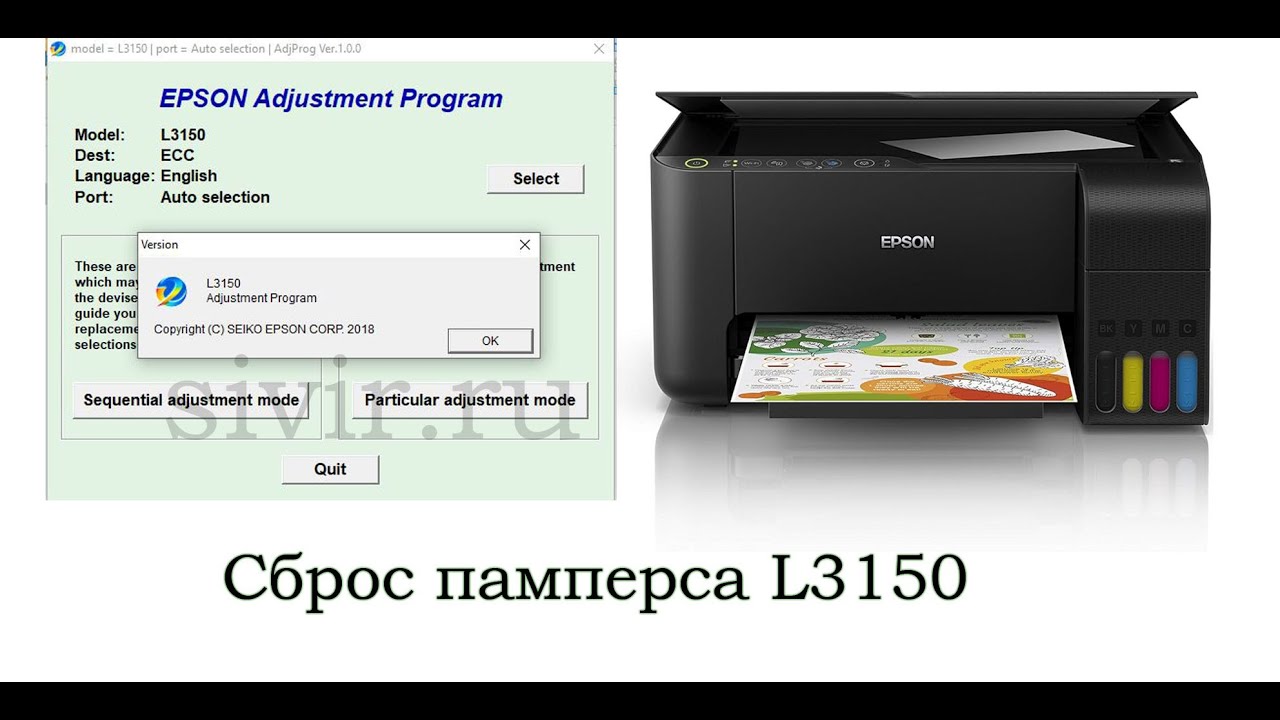
When the error message "Service required. Contact a service center" appears on the screen,
this means your device requires professional maintenance. EPSON Adj Pro will help you resolve the issue quickly and affordably.
🎯 Which models is it compatible with?
This tool is designed to reset the waste ink container (waste ink container) overflow error for the following Epson models:
L3150
✅ Why is it beneficial?
Unlimited use—no need to buy a key each time. Pay once and use it without restrictions.
Cost savings—significantly cheaper than constant service calls.
Proven reliability—the program has been tested multiple times and is free of viruses and threats.
⚠️ Important note! Please read before purchasing.
If you don´t know where the Downloads folder is on your computer, don´t know how to unzip archives, or don´t want to read instructions, don´t purchase the program.
❗ In these cases, it´s best to contact specialists who can help you reset the printer error remotely.
📥 How do I get the program?
After payment, a download link will be sent to the email you provided.
💻 Important: The program only works on Windows. It won´t run on a MacBook.
🛠️ Having trouble?
Don´t rush to leave a negative review—it won´t speed up the solution. Any problem can be resolved peacefully.
If after purchasing you can´t download the archive, the program freezes, or displays an error:
Read the instructions carefully.
If the error persists after reading the instructions, be sure to contact us in the order chat.
⏱️ Technical Support Hours
Monday - Friday
from 10:00 AM to 6:00 PM Moscow time
⏳ Support responds only during business hours, on a first-come, first-served basis.
Full instructions for use are available in the "Additional Information" tab.
this means your device requires professional maintenance. EPSON Adj Pro will help you resolve the issue quickly and affordably.
🎯 Which models is it compatible with?
This tool is designed to reset the waste ink container (waste ink container) overflow error for the following Epson models:
L3150
✅ Why is it beneficial?
Unlimited use—no need to buy a key each time. Pay once and use it without restrictions.
Cost savings—significantly cheaper than constant service calls.
Proven reliability—the program has been tested multiple times and is free of viruses and threats.
⚠️ Important note! Please read before purchasing.
If you don´t know where the Downloads folder is on your computer, don´t know how to unzip archives, or don´t want to read instructions, don´t purchase the program.
❗ In these cases, it´s best to contact specialists who can help you reset the printer error remotely.
📥 How do I get the program?
After payment, a download link will be sent to the email you provided.
💻 Important: The program only works on Windows. It won´t run on a MacBook.
🛠️ Having trouble?
Don´t rush to leave a negative review—it won´t speed up the solution. Any problem can be resolved peacefully.
If after purchasing you can´t download the archive, the program freezes, or displays an error:
Read the instructions carefully.
If the error persists after reading the instructions, be sure to contact us in the order chat.
⏱️ Technical Support Hours
Monday - Friday
from 10:00 AM to 6:00 PM Moscow time
⏳ Support responds only during business hours, on a first-come, first-served basis.
Full instructions for use are available in the "Additional Information" tab.
📬 Receiving the program
When making a payment, be sure to include your email address. The download link will be sent to this email address.
💻 Important: The program only works on Windows.
You will need WinRAR to unzip the archive.
🧭 Instructions for clearing the error
🟢 Preparation before you begin
Before launching the program, make sure the following conditions are met:
The printer is connected to the computer via a USB cable.
The print queue is completely cleared.
🟡 Downloading and unzipping
If your browser is blocking the download, don´t worry. There are two options:
Find instructions online on how to bypass the blocking for your browser.
Or simply download the archive using the Edge browser—it doesn´t block the download of the Epson Adjustment Program.
After downloading:
Unzip the archive to your desktop (use WinRAR).
Open the Adjprog.exe file.
🔧 Program settings
In the Select menu:
L3150
In the Port field, select the USB Port with your printer´s name in parentheses. Click OK.
Click Particular adjustment mode.
In the large list, find the "Waste ink pad counter" line.
In the window that appears, check the two boxes:
Main pad counter
Platen pad counter
Then click Check.
⚠️ If the program freezes on this step
Check one by one:
Is the print queue cleared?
Unplug and plug the USB cable into a different port on your computer/laptop.
Reinstall the printer driver.
Try everything again on a different computer/laptop.
Special note: If you work in a service center where dozens or hundreds of printers have previously been connected to the system, the program will most likely not launch. Contact us – we´ll help.
🧹 Reset the Counter
After clicking Check, numbers will appear – the percentage of the counters. One of them will be 100 (this is the one you need to reset). The others are optional.
Check the box next to the counter with a value of 100 and click Initialize.
The program will ask you to turn off the printer. Do so.
🔄 Completion
Turn the printer back on.
The device should enter Ready mode. Error reset ✅
🆘 Need help?
If something goes wrong, please contact us. We´re here to help.
When making a payment, be sure to include your email address. The download link will be sent to this email address.
💻 Important: The program only works on Windows.
You will need WinRAR to unzip the archive.
🧭 Instructions for clearing the error
🟢 Preparation before you begin
Before launching the program, make sure the following conditions are met:
The printer is connected to the computer via a USB cable.
The print queue is completely cleared.
🟡 Downloading and unzipping
If your browser is blocking the download, don´t worry. There are two options:
Find instructions online on how to bypass the blocking for your browser.
Or simply download the archive using the Edge browser—it doesn´t block the download of the Epson Adjustment Program.
After downloading:
Unzip the archive to your desktop (use WinRAR).
Open the Adjprog.exe file.
🔧 Program settings
In the Select menu:
L3150
In the Port field, select the USB Port with your printer´s name in parentheses. Click OK.
Click Particular adjustment mode.
In the large list, find the "Waste ink pad counter" line.
In the window that appears, check the two boxes:
Main pad counter
Platen pad counter
Then click Check.
⚠️ If the program freezes on this step
Check one by one:
Is the print queue cleared?
Unplug and plug the USB cable into a different port on your computer/laptop.
Reinstall the printer driver.
Try everything again on a different computer/laptop.
Special note: If you work in a service center where dozens or hundreds of printers have previously been connected to the system, the program will most likely not launch. Contact us – we´ll help.
🧹 Reset the Counter
After clicking Check, numbers will appear – the percentage of the counters. One of them will be 100 (this is the one you need to reset). The others are optional.
Check the box next to the counter with a value of 100 and click Initialize.
The program will ask you to turn off the printer. Do so.
🔄 Completion
Turn the printer back on.
The device should enter Ready mode. Error reset ✅
🆘 Need help?
If something goes wrong, please contact us. We´re here to help.
No feedback yet