Microsoft 365 Business E3 E5 Enterprise Subscription Key
Content: text (0 symbol)
Available: 1
Uploaded:
Positive responses: 0
Negative responses: 0
Sold: 0
Refunds: 0
$826.58
WHAT YOU RECEIVE:
1x Microsoft 365 Business / Enterprise Subscription (1 Year).
Choose your plan and user count from the options above before purchasing.
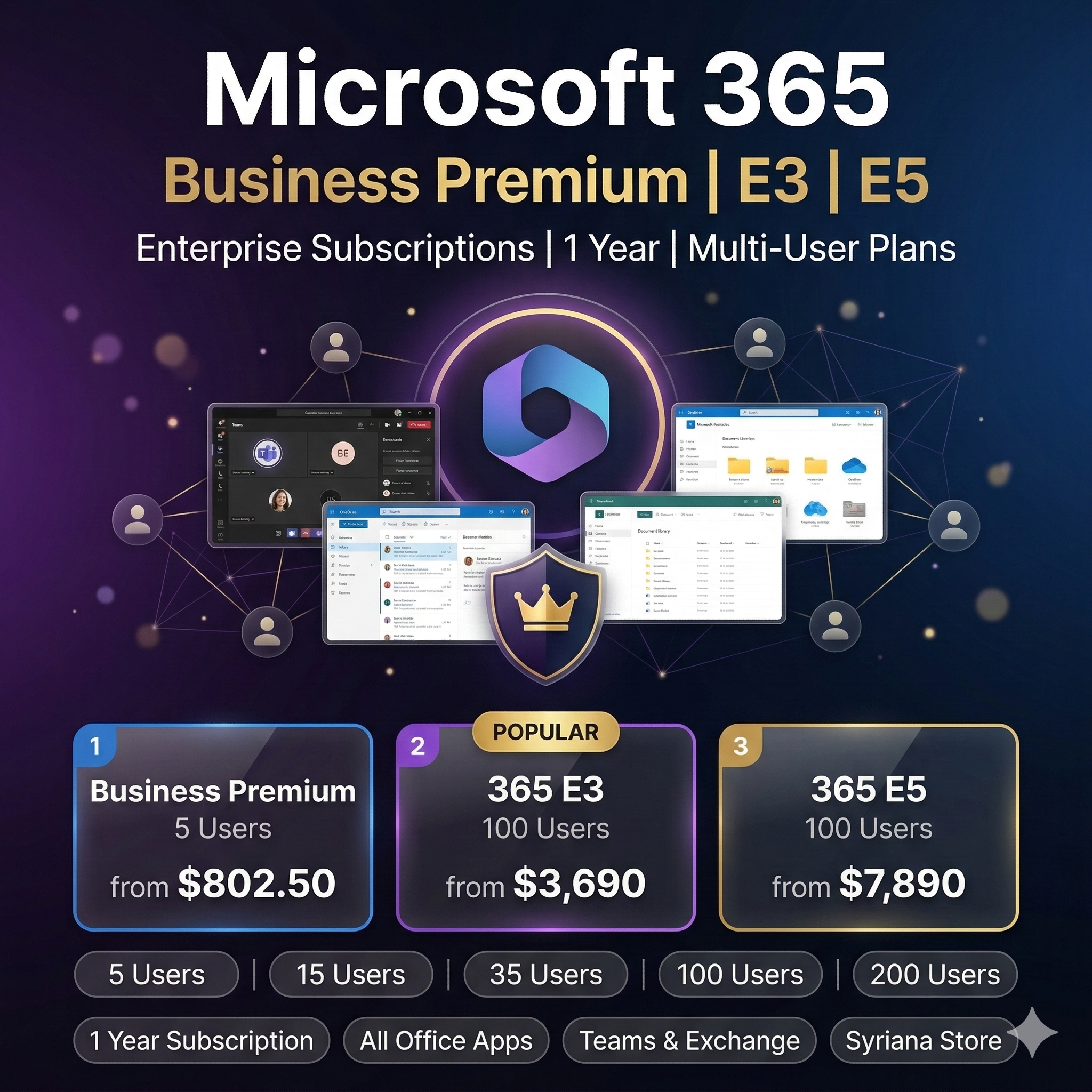
AVAILABLE PLANS:
Microsoft 365 Business Premium:
- 5 Users (1 Year)
- 15 Users (1 Year)
- 35 Users (1 Year)
- 100 Users (1 Year)
Microsoft 365 E3:
- 100 Users (1 Year)
- 200 Users (1 Year)
Microsoft 365 E5:
- 100 Users (1 Year)
- 200 Users (1 Year)
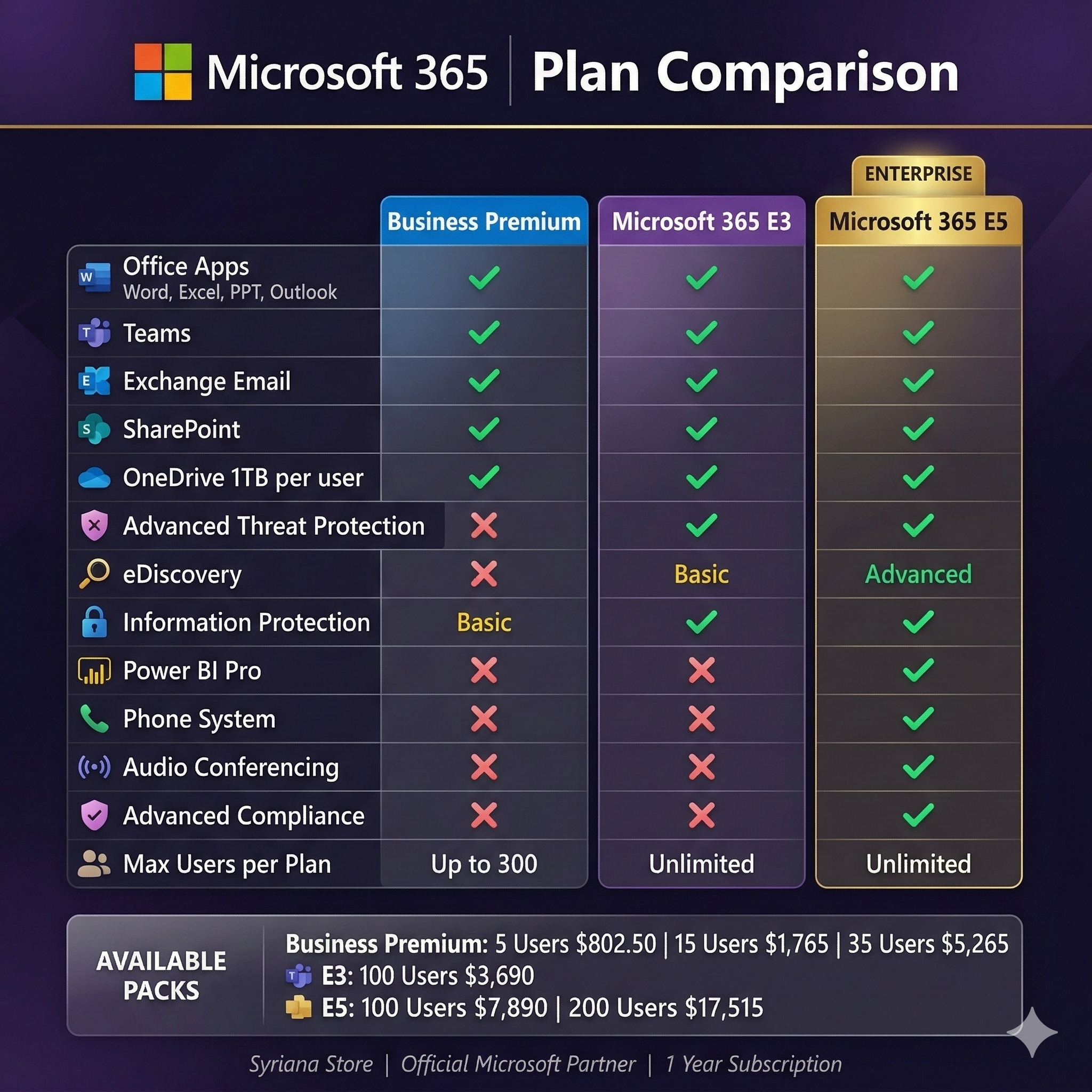
PLAN COMPARISON:
Business Premium: Ideal for small-to-medium businesses. Includes all Office apps, Exchange email, Teams, SharePoint, OneDrive (1TB/user), Intune device management, Azure AD Premium P1, and advanced security features.
E3: Enterprise-grade plan. Includes everything in Business Premium plus enhanced compliance, eDiscovery, information protection, and Windows Enterprise licensing.
E5: Most comprehensive plan. Includes everything in E3 plus advanced security, analytics, voice capabilities, and Power BI Pro.
LICENSE DETAILS:
- Subscription: 1 Year from activation
- Activation warranty: 60 days
- Language: Multilingual
- Regional binding: None (worldwide)
DELIVERY:
Manual delivery. After payment, you will receive a unique code.
Delivery time: 2 to 48 hours maximum.
SUPPORT:
Contact us through the platform messaging system. We respond within 24 hours.
1x Microsoft 365 Business / Enterprise Subscription (1 Year).
Choose your plan and user count from the options above before purchasing.
AVAILABLE PLANS:
Microsoft 365 Business Premium:
- 5 Users (1 Year)
- 15 Users (1 Year)
- 35 Users (1 Year)
- 100 Users (1 Year)
Microsoft 365 E3:
- 100 Users (1 Year)
- 200 Users (1 Year)
Microsoft 365 E5:
- 100 Users (1 Year)
- 200 Users (1 Year)
PLAN COMPARISON:
Business Premium: Ideal for small-to-medium businesses. Includes all Office apps, Exchange email, Teams, SharePoint, OneDrive (1TB/user), Intune device management, Azure AD Premium P1, and advanced security features.
E3: Enterprise-grade plan. Includes everything in Business Premium plus enhanced compliance, eDiscovery, information protection, and Windows Enterprise licensing.
E5: Most comprehensive plan. Includes everything in E3 plus advanced security, analytics, voice capabilities, and Power BI Pro.
LICENSE DETAILS:
- Subscription: 1 Year from activation
- Activation warranty: 60 days
- Language: Multilingual
- Regional binding: None (worldwide)
DELIVERY:
Manual delivery. After payment, you will receive a unique code.
Delivery time: 2 to 48 hours maximum.
SUPPORT:
Contact us through the platform messaging system. We respond within 24 hours.
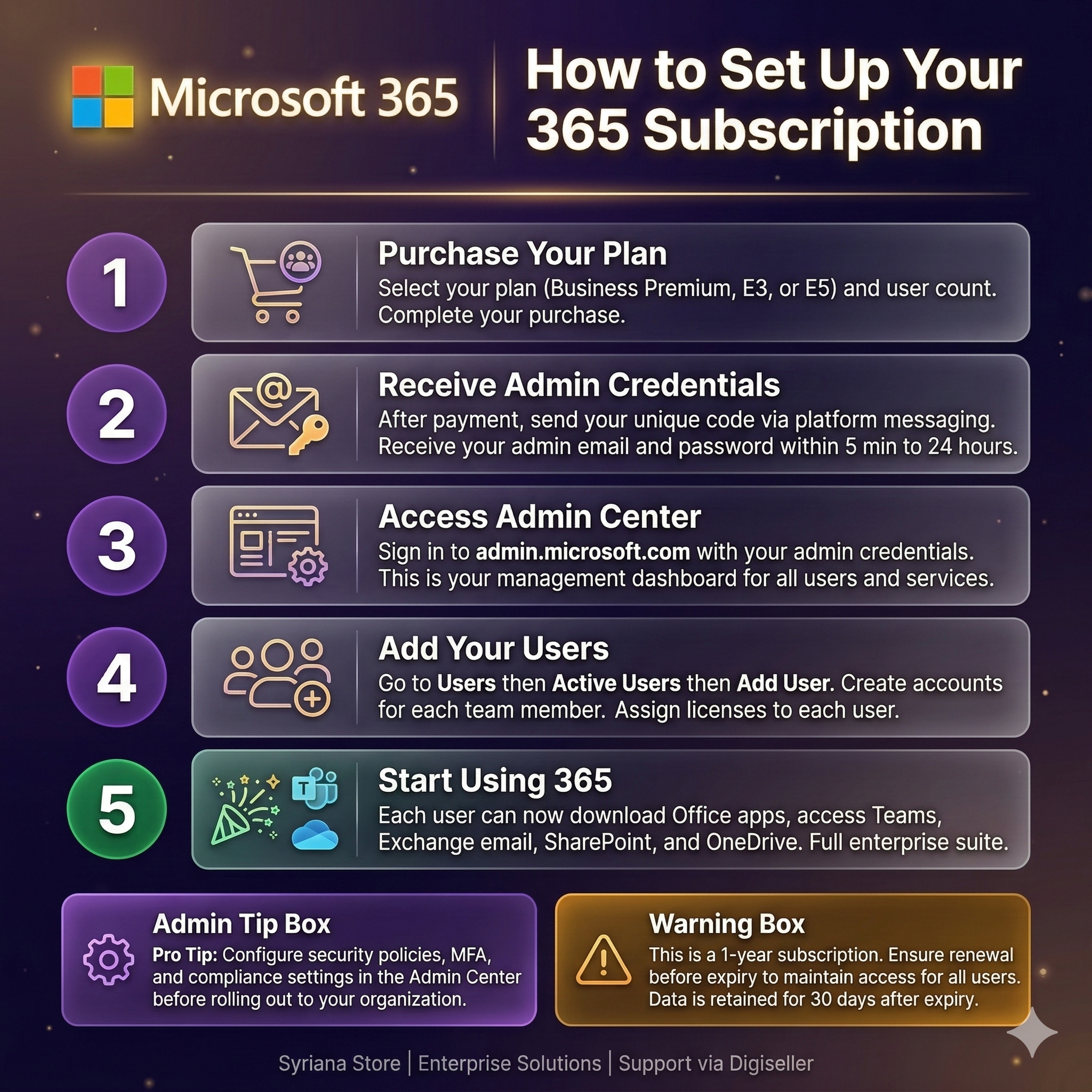
HOW TO ACTIVATE YOUR MICROSOFT 365 SUBSCRIPTION:
1. After payment, you will receive admin credentials (Email + Password) for the Microsoft 365 Admin Center.
2. Go to https://admin.microsoft.com and sign in with the provided credentials.
3. Navigate to Users > Active Users > Add a user to create user accounts.
4. Assign licenses to each user from the Licenses section.
5. Each user can then install Office apps: Go to Office > Install Apps > Microsoft 365 Apps.
6. Users sign in at https://portal.office.com with their assigned credentials.
SETTING UP EMAIL:
1. In Admin Center, go to Settings > Domains to configure your custom domain.
2. Follow the DNS setup wizard to add MX, CNAME, and TXT records.
3. Create mailboxes for your users through Exchange admin center.
INSTALLING OFFICE APPS:
- Desktop: Sign in at office.com > Install Office > Run installer
- Mobile: Download from App Store/Google Play > Sign in with user account
- Web: Access all apps at office.com in any browser
TROUBLESHOOTING:
- Cannot sign in: Clear browser cache or try incognito mode
- License not showing: Wait 15-30 minutes after assignment, then refresh
- Installation issues: Uninstall previous Office versions first
- Need help: Contact us through the platform messaging system
IMPORTANT LINKS:
- Admin Center: https://admin.microsoft.com
- User Portal: https://portal.office.com
- Office Install: https://aka.ms/office-install
- Microsoft Support: https://support.microsoft.com
1. After payment, you will receive admin credentials (Email + Password) for the Microsoft 365 Admin Center.
2. Go to https://admin.microsoft.com and sign in with the provided credentials.
3. Navigate to Users > Active Users > Add a user to create user accounts.
4. Assign licenses to each user from the Licenses section.
5. Each user can then install Office apps: Go to Office > Install Apps > Microsoft 365 Apps.
6. Users sign in at https://portal.office.com with their assigned credentials.
SETTING UP EMAIL:
1. In Admin Center, go to Settings > Domains to configure your custom domain.
2. Follow the DNS setup wizard to add MX, CNAME, and TXT records.
3. Create mailboxes for your users through Exchange admin center.
INSTALLING OFFICE APPS:
- Desktop: Sign in at office.com > Install Office > Run installer
- Mobile: Download from App Store/Google Play > Sign in with user account
- Web: Access all apps at office.com in any browser
TROUBLESHOOTING:
- Cannot sign in: Clear browser cache or try incognito mode
- License not showing: Wait 15-30 minutes after assignment, then refresh
- Installation issues: Uninstall previous Office versions first
- Need help: Contact us through the platform messaging system
IMPORTANT LINKS:
- Admin Center: https://admin.microsoft.com
- User Portal: https://portal.office.com
- Office Install: https://aka.ms/office-install
- Microsoft Support: https://support.microsoft.com
No feedback yet