PUBG - 18in1 - script for logitech - 2026
Content: PUBG-18in1-logitech.zip (4.41 KB)
Uploaded: 12.04.2026
Positive responses: 0
Negative responses: 0
Sold: 1
Refunds: 0
$15.87
The adjustable "No recoil" script for Logitech mice in PUBG remove most of the vertical recoil for the ACE32, AKM, AUG, BERYL, FAMAS, GROZA, JS9, M249, M416, MG3 (990rpm), MK14, MP5, MP9, P90, SCAR, UMP, VECTOR, VSS, significantly improving accuracy and thereby increasing the effective range against opponents. Your mouse should be supported by the GHUB software.
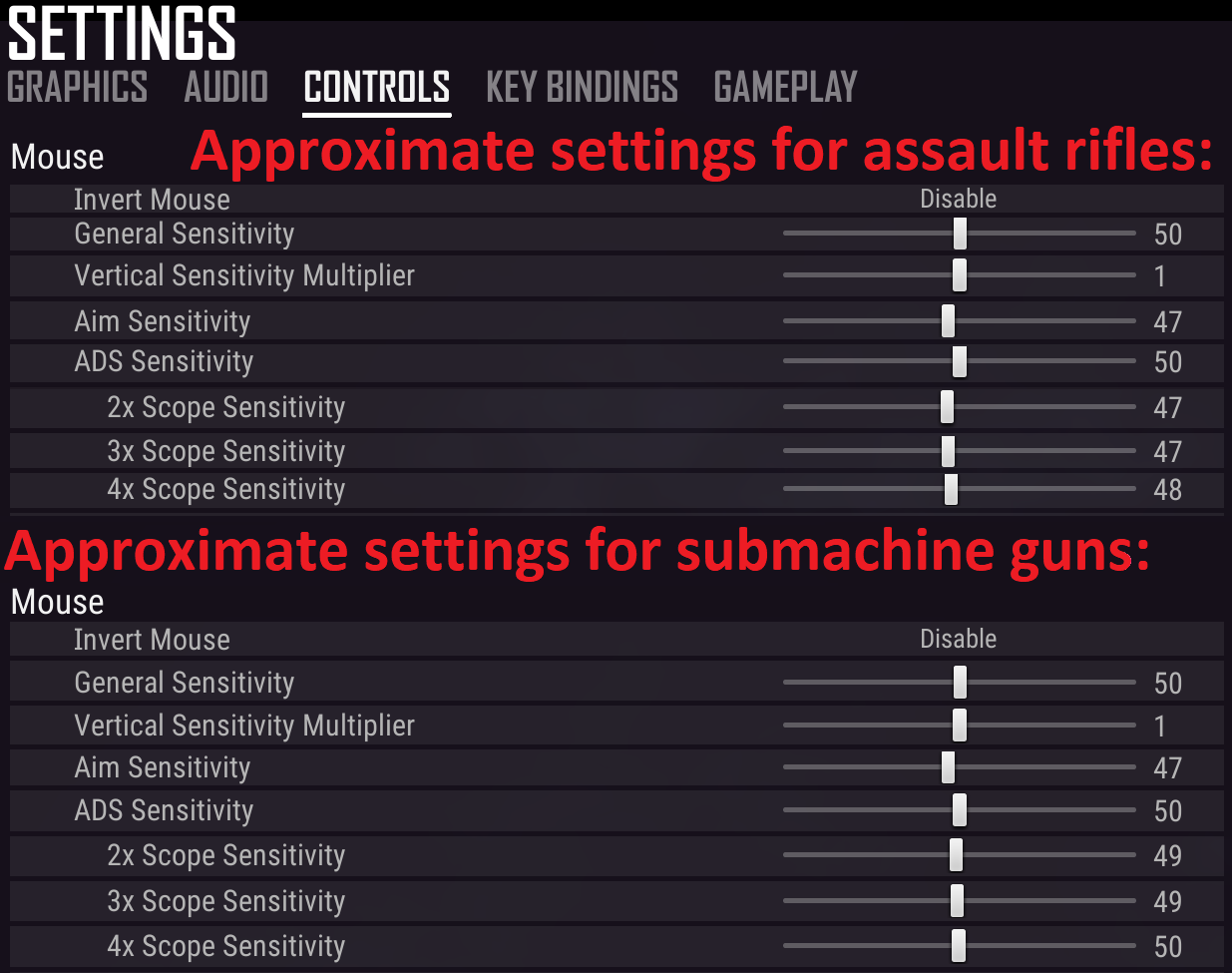
Script were written for an enlarged mags, for shooting from a standing position from the first person under the mouse sensitivity settings in the game: for 1x - 50, for 2x & 3x - 47, for 4x - 48, vertical sensitivity multiplier - 1.0.
The script is configured for an in-game mouse sensitivity of 50. If you use a different sensitivity, for example 30, then calculate 50/30 = 1.67 and change the value in the line multiplier = 1 to 1.67, so it becomes: multiplier = 1.67Script Management:CapsLock: Toggle the script on/off. Press the CapsLock key on your keyboard, and the CapsLock indicator will light up, indicating the script is active. Pressing CapsLock again will deactivate the script, turning off the CapsLock indicator.
After enabling the script, the following modes are enabled by default: no attachments, 1× scope, weapon group with 5.56 caliber and VSS.
Weapons with 5.56 caliber and VSS: left shift + 3rd mouse button
Weapons with 7.62 caliber: left alt + 3rd mouse button
Submachine guns: left shift + left alt + 3rd mouse button
FAMAS, AKM, MP5: left alt + 5th mouse button
M249, BERYL, MP9: left shift + left alt + 5th mouse button
M416, GROZA, P90: left shift + 4th mouse button
SCAR, MG3 (990rpm), UMP: left alt + 4th mouse button
VSS, MK14, VECTOR: left shift + left alt + 4th mouse button
Compensator or vertical foregrip (cheek pad): left ctrl + 4th mouse button
Compensator with vertical foregrip (cheek pad): left ctrl + 3rd mouse button
2x: left ctrl + left alt + 5th mouse button
3x: left ctrl + left shift + 4th mouse button
4x: left ctrl + left alt + 4th mouse button
v6.2... - removing recoil in this script only when the right mouse button and the left one are pressed. If you do not press the right button, the left button will work as usual. That is, these scripts are for the aiming mode, in which aiming is carried out by holding the right mouse button down.attentionVIDEO:
Demonstration of recoil removal from a weapon with a caliber cartridge - 7.62: zen.yandex.ru/video/watch/625d3585ab68c7653f5d3ae4
Demonstration of recoil removal from a weapon with a caliber cartridge - 5.56: zen.yandex.ru/video/watch/625d3ed63e50e11d4bf1fd23/attention
Script were written for an enlarged mags, for shooting from a standing position from the first person under the mouse sensitivity settings in the game: for 1x - 50, for 2x & 3x - 47, for 4x - 48, vertical sensitivity multiplier - 1.0.
The script is configured for an in-game mouse sensitivity of 50. If you use a different sensitivity, for example 30, then calculate 50/30 = 1.67 and change the value in the line multiplier = 1 to 1.67, so it becomes: multiplier = 1.67Script Management:CapsLock: Toggle the script on/off. Press the CapsLock key on your keyboard, and the CapsLock indicator will light up, indicating the script is active. Pressing CapsLock again will deactivate the script, turning off the CapsLock indicator.
After enabling the script, the following modes are enabled by default: no attachments, 1× scope, weapon group with 5.56 caliber and VSS.
Weapon group:
Before selecting and enabling the no-recoil mode for a weapon, you must first select and enable the group that this weapon belongs to.Weapons with 5.56 caliber and VSS: left shift + 3rd mouse button
Weapons with 7.62 caliber: left alt + 3rd mouse button
Submachine guns: left shift + left alt + 3rd mouse button
Weapons:
AUG, ACE32, JS9: left shift + 5th mouse buttonFAMAS, AKM, MP5: left alt + 5th mouse button
M249, BERYL, MP9: left shift + left alt + 5th mouse button
M416, GROZA, P90: left shift + 4th mouse button
SCAR, MG3 (990rpm), UMP: left alt + 4th mouse button
VSS, MK14, VECTOR: left shift + left alt + 4th mouse button
Attachments:
Without attachments: left ctrl + 5th mouse buttonCompensator or vertical foregrip (cheek pad): left ctrl + 4th mouse button
Compensator with vertical foregrip (cheek pad): left ctrl + 3rd mouse button
Sights:
1x (front sight, collimator, holographic sight): left ctrl + left shift + 5th mouse button2x: left ctrl + left alt + 5th mouse button
3x: left ctrl + left shift + 4th mouse button
4x: left ctrl + left alt + 4th mouse button
Script Versions:
v6.1... - after enabling the script, removing recoil by pressing the left mouse button.v6.2... - removing recoil in this script only when the right mouse button and the left one are pressed. If you do not press the right button, the left button will work as usual. That is, these scripts are for the aiming mode, in which aiming is carried out by holding the right mouse button down.attentionVIDEO:
Demonstration of recoil removal from a weapon with a caliber cartridge - 7.62: zen.yandex.ru/video/watch/625d3585ab68c7653f5d3ae4
Demonstration of recoil removal from a weapon with a caliber cartridge - 5.56: zen.yandex.ru/video/watch/625d3ed63e50e11d4bf1fd23/attention
Attention!!! If you receive an email with the message:“Digiseller: the seller wrote a message”open the email and follow the link inside. It will take you to your personal account, where you will find my message with important information about product updates, new product releases, or useful information about the anti-cheat system. For example, warnings about anti-cheat detection, how to avoid a ban, etc.
Also join my Discord and VK groups. I post important information there as well.
You can also access your personal account through the website oplata.infoProblems that can occur with Logitech and how to solve them!!!
Download the old, stable version here:: https://drive.google.com/file/d/1ffXNTp5iQZ8woltyIj7CKkeY6Oz6ux3x/view
After installation, disable automatic updates in the settings.
Also, for safety, do not use game-specific profiles in GHUB or Logitech Gaming Software. Use a desktop profile with the persistent attribute.
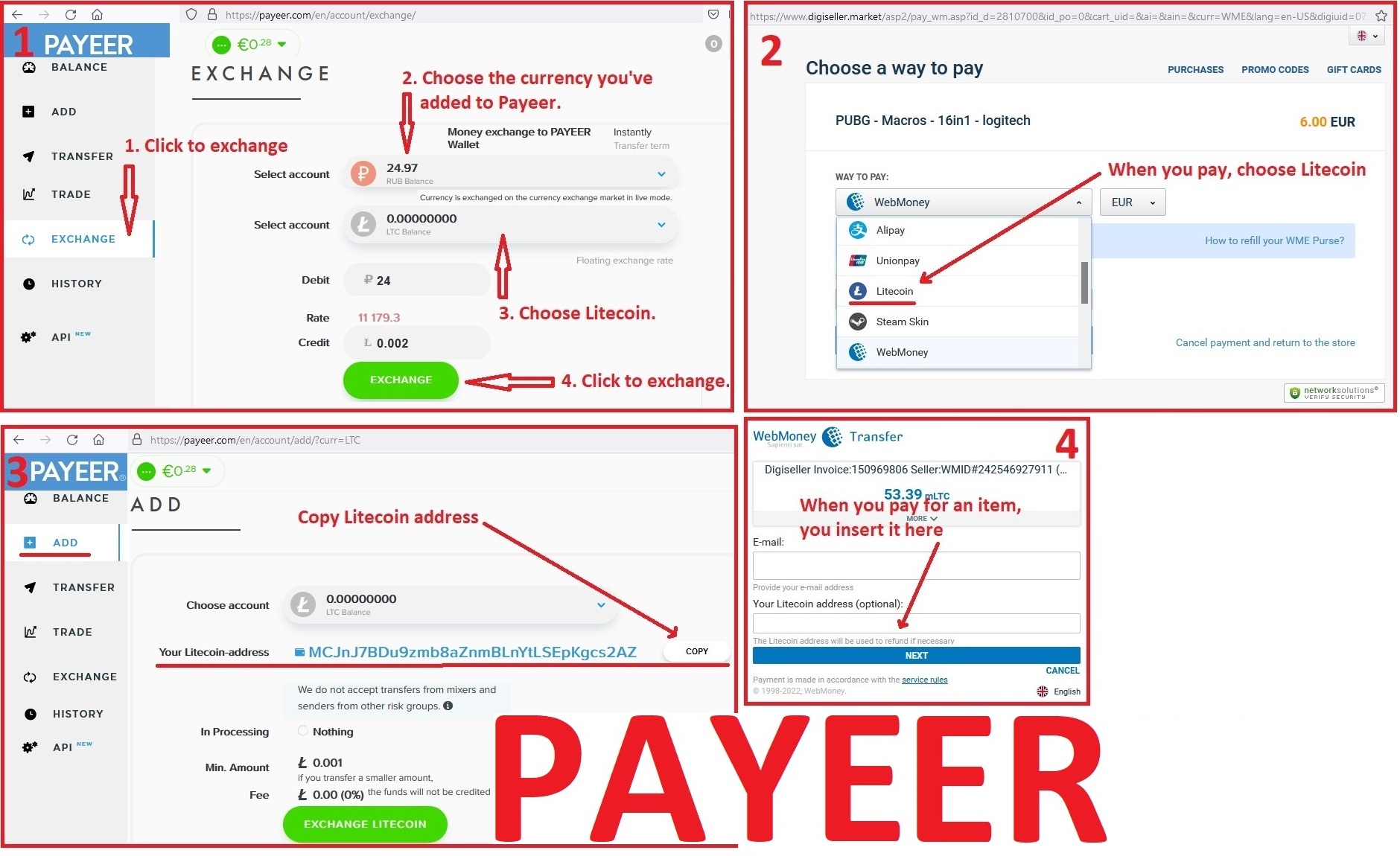
1. Sign up for Payeer: https://payeer.com/?session=13084023
2. Register with the European Exchanger: https://changer4u.com/ru/aff/e60c9d86e365ae81439dedefa2ad227e3ac569d6
3. Replenish Payeer with an exchanger.
4. In Payeer replenish Litecoin.
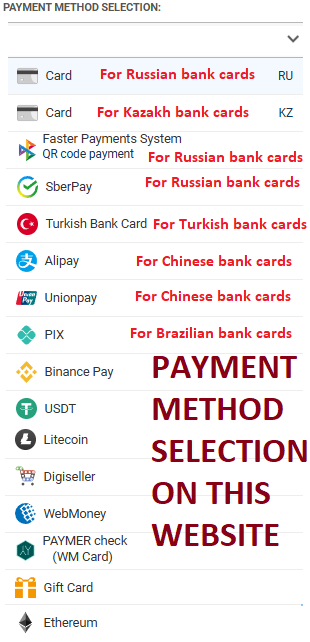
5. When buying, choose Litecoin from the payment methods.
When paying with Litecoin, there is no banking commission and the price of the item is lower.
You can also pay with skins from Steam: zen.yandex.ru/video/watch/65c05a87bf878653f5ccff1d/attentiondeliveryAfter payment you will receive a link to download the archive with macros. If you accidentally closed the page with this link, you can return it by clicking on the link in the letter that came to your e-mail after payment. You can also go to your personal account at oplata.info and your purchase will be displayed there./delivery
Also join my Discord and VK groups. I post important information there as well.
You can also access your personal account through the website oplata.infoProblems that can occur with Logitech and how to solve them!!!
Attention! How to Avoid a Potential Ban When Using Lua Scripts
In Warface, Lua scripts for recoil control only work with the old GHUB interface. The new interface likely uses Win32 API, which is detected and blocked by anti-cheat systems. There have already been ban cases in games like StalCraft and Delta Force. The old GHUB is safer because it uses its own driver-based solution.Download the old, stable version here:: https://drive.google.com/file/d/1ffXNTp5iQZ8woltyIj7CKkeY6Oz6ux3x/view
After installation, disable automatic updates in the settings.
Also, for safety, do not use game-specific profiles in GHUB or Logitech Gaming Software. Use a desktop profile with the persistent attribute.
GHUB must be run with administrator privileges.
Third-party programs that can use the mouse´s side buttons, such as Discord, may cause issues with running the scripts, so keep this in mind.
You should also be familiar with your mouse button numbering.
IF YOU HAVEN´T FOUND THE RIGHT MACRO ON SALE. THEN I CAN MAKE YOU A MACRO FOR A CERTAIN PAYMENT.
attentionAttention!!! If you can´t pay with a bank card. Then you need Litecoin and get it easy:1. Sign up for Payeer: https://payeer.com/?session=13084023
2. Register with the European Exchanger: https://changer4u.com/ru/aff/e60c9d86e365ae81439dedefa2ad227e3ac569d6
3. Replenish Payeer with an exchanger.
4. In Payeer replenish Litecoin.
5. When buying, choose Litecoin from the payment methods.
When paying with Litecoin, there is no banking commission and the price of the item is lower.
You can also pay with skins from Steam: zen.yandex.ru/video/watch/65c05a87bf878653f5ccff1d/attentiondeliveryAfter payment you will receive a link to download the archive with macros. If you accidentally closed the page with this link, you can return it by clicking on the link in the letter that came to your e-mail after payment. You can also go to your personal account at oplata.info and your purchase will be displayed there./delivery
No feedback yet